
Keloola Projects - MCP setup guide
Connect Keloola Projects to your AI client
Use this guide to connect Claude, Codex, or ChatGPT to Keloola Projects. Your client signs in directly to Keloola SSO; this MCP server only receives and validates the access token.
client_secret in this project or paste one into your AI client. OAuth client registration and the authorization flow belong to Keloola SSO.
Before you start
- Use a public HTTPS URL for the MCP server. AI clients cannot connect to a private localhost address.
- Make sure you can sign in to Keloola SSO and have access to the intended Keloola Projects organization.
- Ask your SSO administrator to register the AI client or enable Dynamic Client Registration (DCR).
- Keep this page open during setup; you will need the endpoint below.
Connection details
Keloola provides separate remote, streamable HTTP MCP endpoints for Projects and Accounting. Copy the endpoint for the product you want to connect into the client's MCP server URL field.
https://mcp.keloola.xyz/mcp/keloola-projects
| Setting | Value |
|---|---|
| Server type | Remote MCP / Streamable HTTP |
| Server URL | https://mcp.keloola.xyz/mcp/keloola-projects |
| Authentication | OAuth 2.0 via Keloola SSO |
| Protected-resource metadata | https://mcp.keloola.xyz/.well-known/oauth-protected-resource/mcp/keloola-projects |
Do not use a manually copied bearer token unless your client specifically requires it for a short-lived test. Normal operation should start the OAuth sign-in flow.
Guide to Getting a Client ID and Client Secret
This section is used for all clients that require OAuth credentials. Follow these steps once, then use the generated credentials in Claude, ChatGPT, or other relevant clients.
client_id / client_secret remains the same.
1. Log in to Keloola Developer
Open the Keloola Developer page to start creating and managing your OAuth application.
Please log in using your existing Keloola account. If you do not have an account yet, you can create a new account through this page. You can also use your Google account to log in or register.
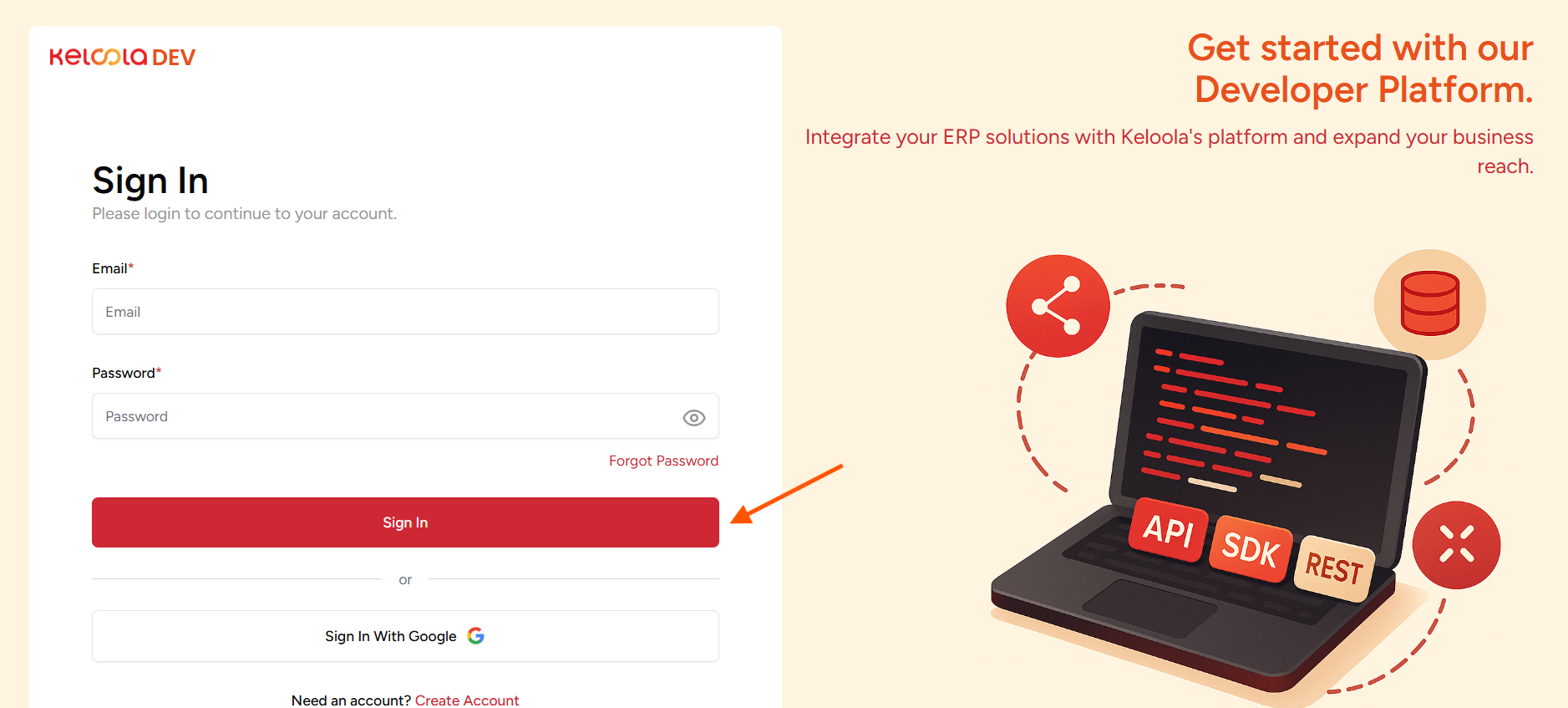
After successfully logging in, you will be redirected to the Keloola Developer page to continue creating your OAuth application and obtain client_id and client_secret.
2. Create a New Application
After successfully logging in, you will be redirected to the Keloola Developer page. On this page, select Create Application to create a new OAuth application.
This application is used to manage OAuth configuration, including Redirect URI, and to generate client_id and client_secret required by clients such as Claude, ChatGPT, or other applications.
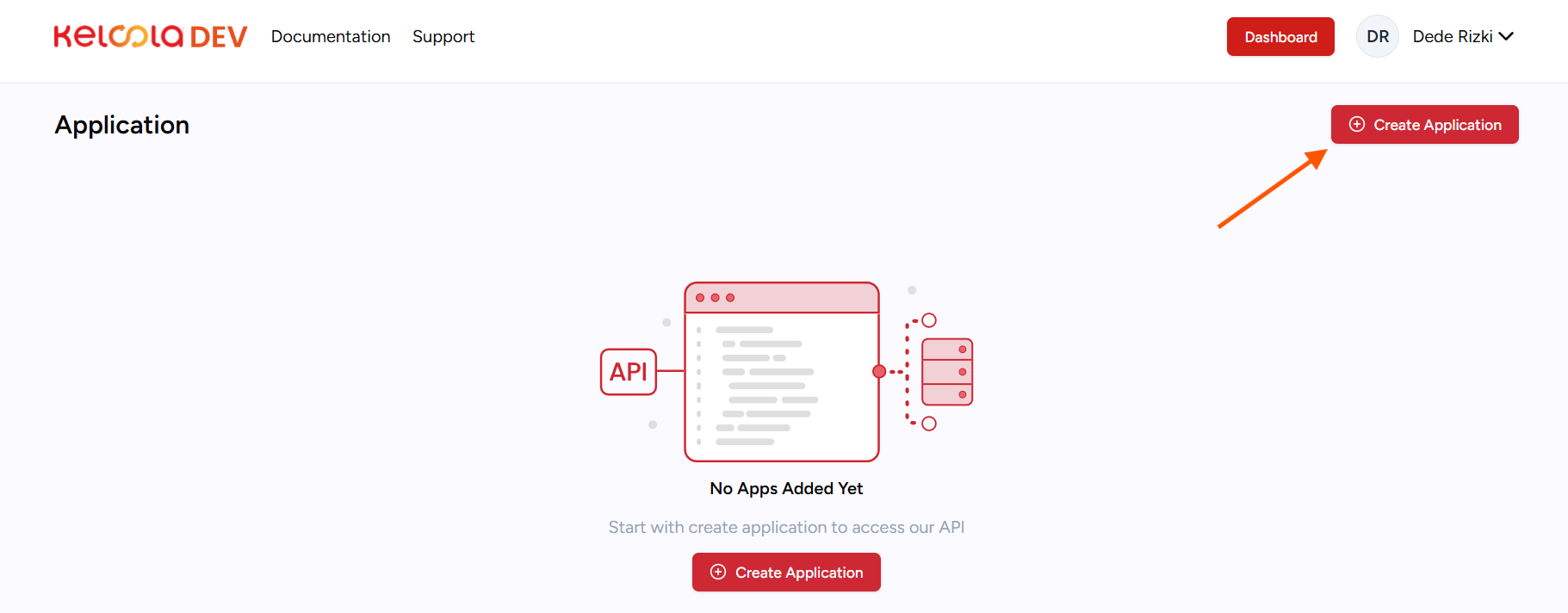
Click Create Application to continue to the application configuration page.
3. Enter the Application Name
After clicking Create Application, a form for creating a new application will appear. Enter the application name you want to use in the form.
The application name is required and is used to identify your application in Keloola Developer. Use a clear and recognizable name, especially if you have more than one OAuth application.
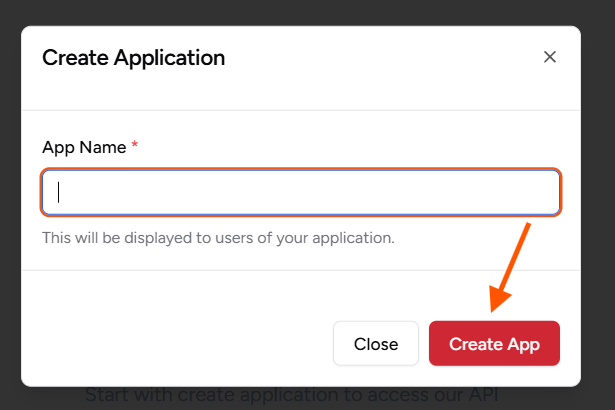
After entering the application name, click Create Application to create the new application and continue to the OAuth configuration page.
4. Complete the Application Details
After the application has been successfully created, you will be redirected to the Application Detail page. On this page, complete the information and assets required for the application you created.
Fill in each field according to your application. Pay attention to fields marked with *, as these fields are required before the application can be saved or published.
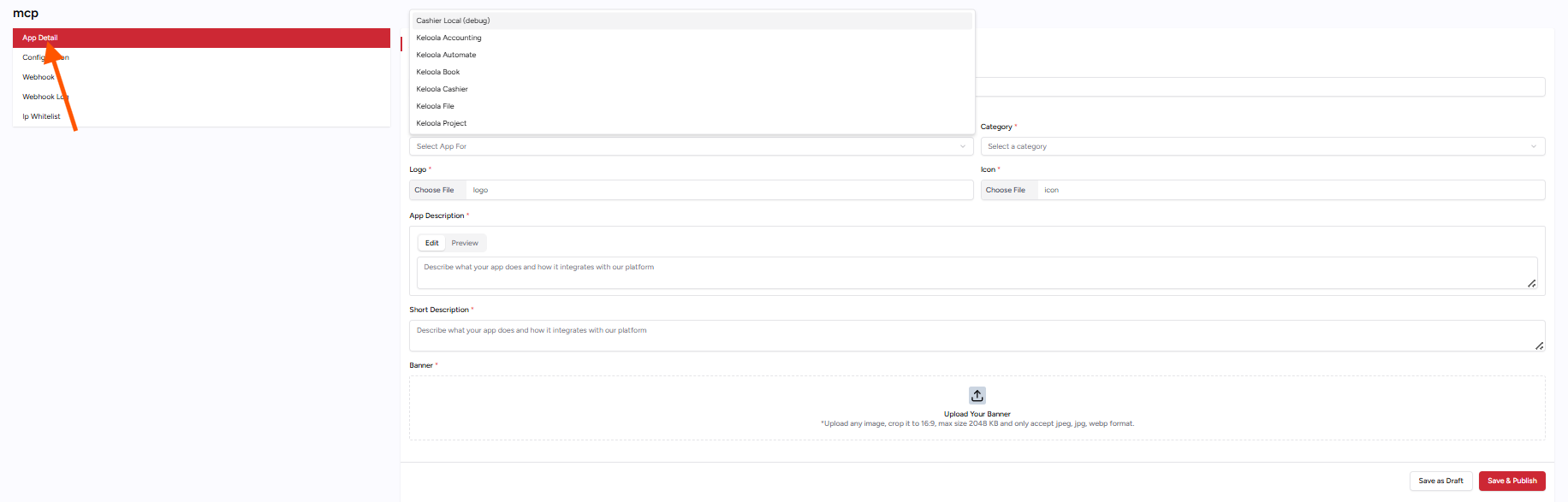
Some of the information that needs to be completed on this page includes:
- App For — select the Keloola product that will be used by your application.
- Category — select the category that best matches your application.
- Logo — upload your application logo.
- Icon — upload your application icon.
- App Description — enter a detailed description of your application.
- Short Description — enter a short description of your application.
- Banner — upload your application banner according to the available size and format requirements.
jpeg, jpg, or webp.
After completing all the information, you can select Save as Draft to save the application as a draft, or Save & Publish to save and publish the application.
5. Configure the Redirect URI
After completing the application details, click Save & Publish. Your application will then be published and ready for further configuration.
Next, open the Configuration menu in the left sidebar. On this page, you need to enter the Redirect URIs that will be used by the client for the OAuth process.
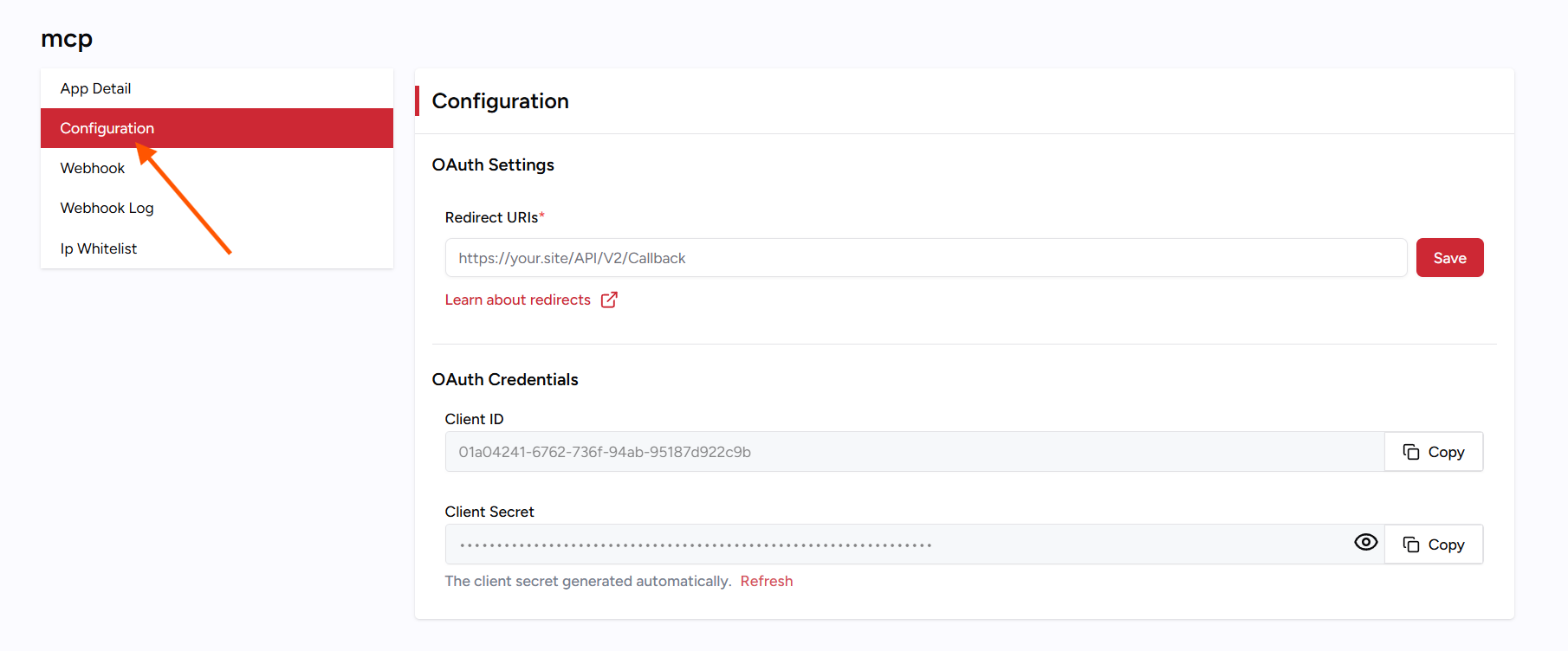
For example, if you want to use this application with Claude, enter the following Redirect URI:
https://claude.ai/api/mcp/auth_callback
Make sure the Redirect URI you enter matches the client you are going to use.
After entering the Redirect URI, make sure all configuration settings are correct. Once you are sure all the information is correct, click Save to save the configuration.
Sign in with Keloola SSO
After you add the server, the client discovers the authorization server from protected-resource metadata and opens Keloola SSO in a browser.
- Choose OAuth authentication when the client asks.
- Sign in on the Keloola SSO page—not on the MCP server.
- Review the requested permissions and approve access for the correct organization.
- Return to the client. It stores the resulting token and reconnects to Keloola Projects.
Expected authorization server: https://sso.keloola.xyz.
Verify the connection
Once connected, begin with a read-only request. This confirms that OAuth, organization access, and the MCP server are all working.
- Ask the client to list available Keloola tools.
- Ask: “Show my Keloola Projects organizations.”
- Then ask: “List my Keloola Projects data.”
- Only after the results are correct, allow actions that create or modify data.
list-organizations
, then select one with
switch-organization.
Set up ChatGPT
Follow these steps to connect ChatGPT to Keloola Projects.
1. Log in to ChatGPT
Open the ChatGPT page using the following URL, then log in with your ChatGPT account.
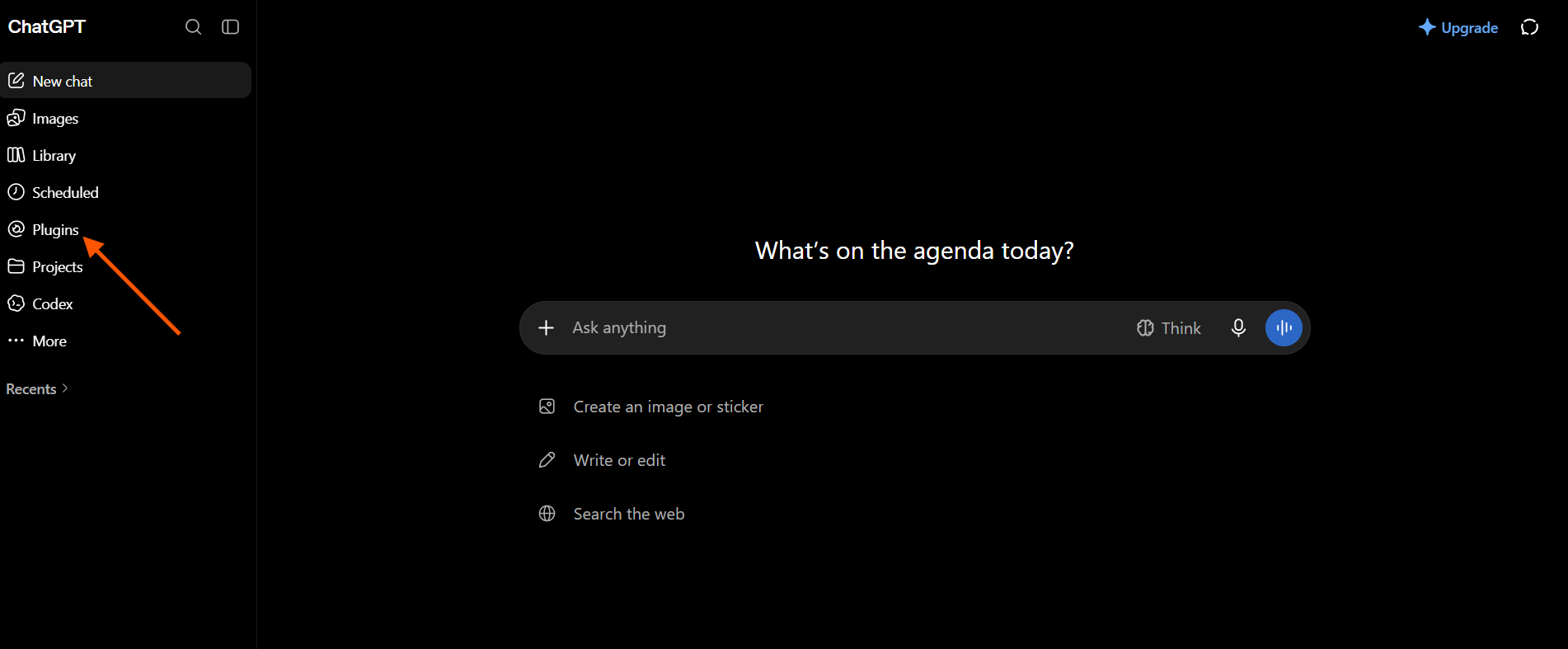
After successfully logging in, open the Plugin menu in the left sidebar to continue adding an app.
2. Add a New App
After opening the Plugin menu, you will be taken to the Plugin page. On this page, click the + icon to add a new app.
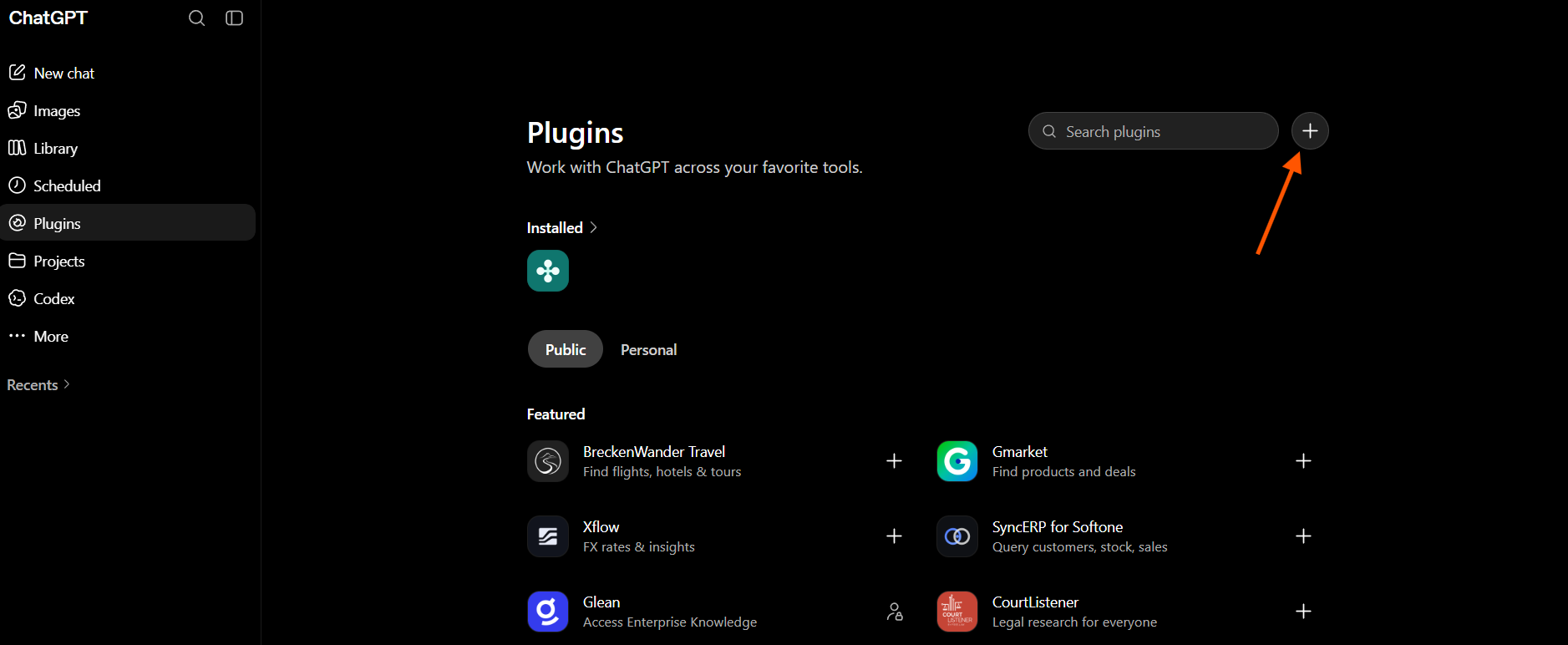
Click the + icon to open the app creation form and continue to the configuration step.
3. Configure the App
After clicking the + icon, a form will appear to create a new app. Complete the app information as needed, such as Icon, Name, and Description.
Under Connection, enter the MCP Server URL that will be used to connect ChatGPT to Keloola Projects.
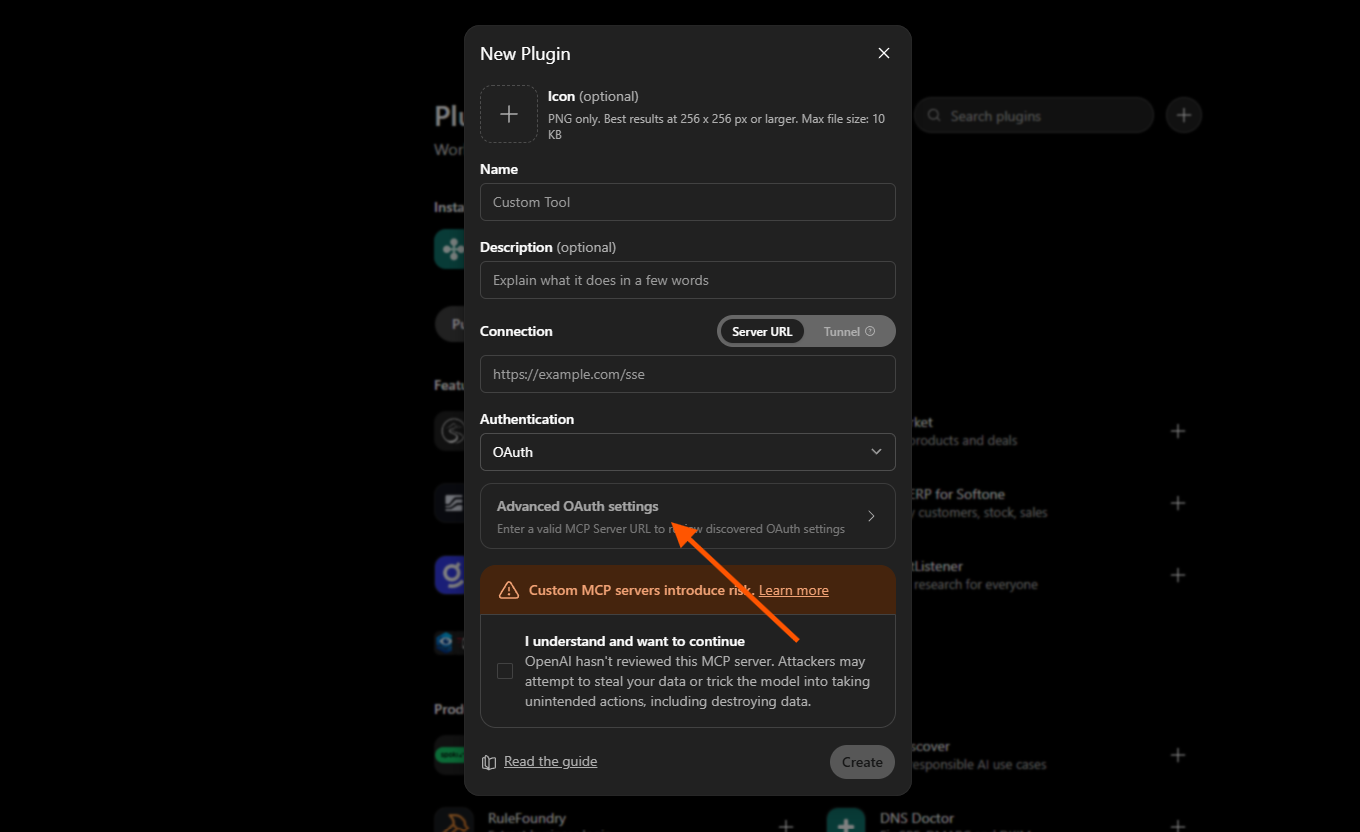
Under Authentication, select OAuth. Then open Advanced OAuth settings to display and configure the required OAuth settings.
After the OAuth configuration is opened, continue by entering the OAuth settings using the Client ID, Client Secret, and other information obtained from Keloola Developer.
4. Enter OAuth Credentials
After opening Advanced OAuth settings, you will find the OAuth settings. Under Registration method, select User-Defined OAuth Client.
Next, enter the Client ID and Client Secret that you previously created through Keloola Developer.
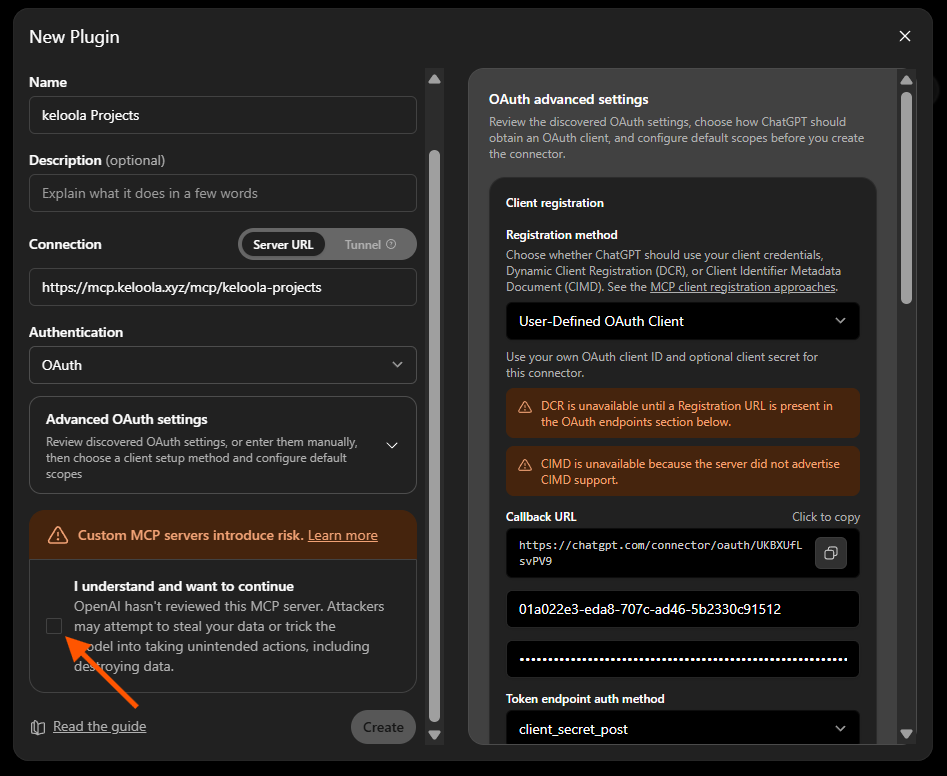
Then, open your application again in Keloola Developer and go to the Configuration menu. Add the Callback URL from ChatGPT to the Redirect URIs section.
After the Redirect URI has been successfully added in Keloola Developer, return to ChatGPT and make sure all OAuth configuration is correct. Then check I understand and want to continue to confirm that you understand the risks of using a custom MCP server, and click Create to complete the app creation process.
5. Connect ChatGPT to Keloola Projects MCP
After the app has been successfully created, a popup will appear to connect ChatGPT to Keloola Projects.
In the popup, follow the connection process shown to connect the app to the Keloola Projects server that was previously configured.
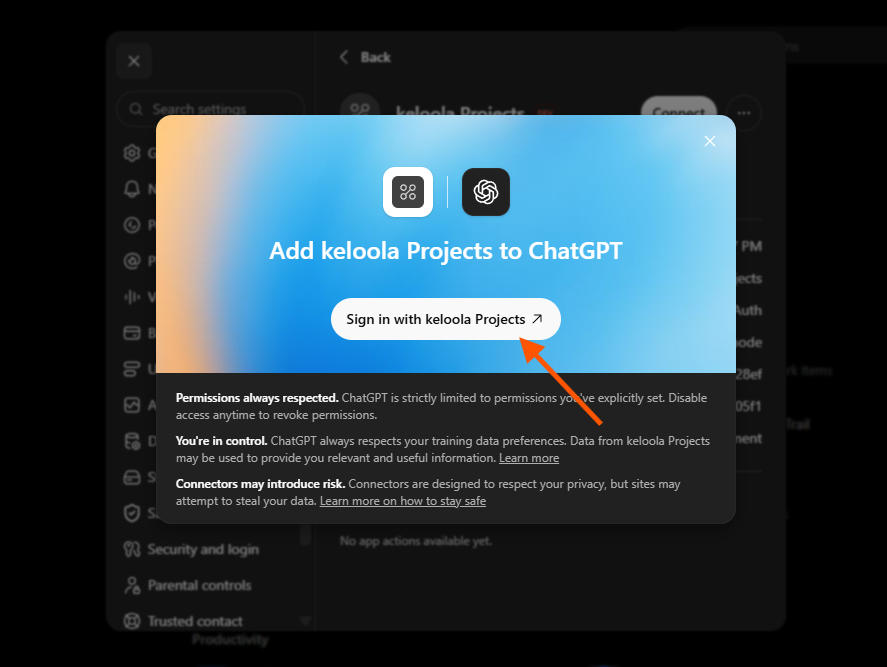
Follow the instructions that appear until the connection is successful. Once connected, ChatGPT can use Keloola Projects according to the access and configuration that have been provided.
Set up Codex Desktop
Follow these steps to connect Codex Desktop to Keloola Projects.
1. Open Codex Settings
Open the Codex Desktop application on your device. In the bottom-left corner, click Profile, then select Settings to open the Codex settings page.
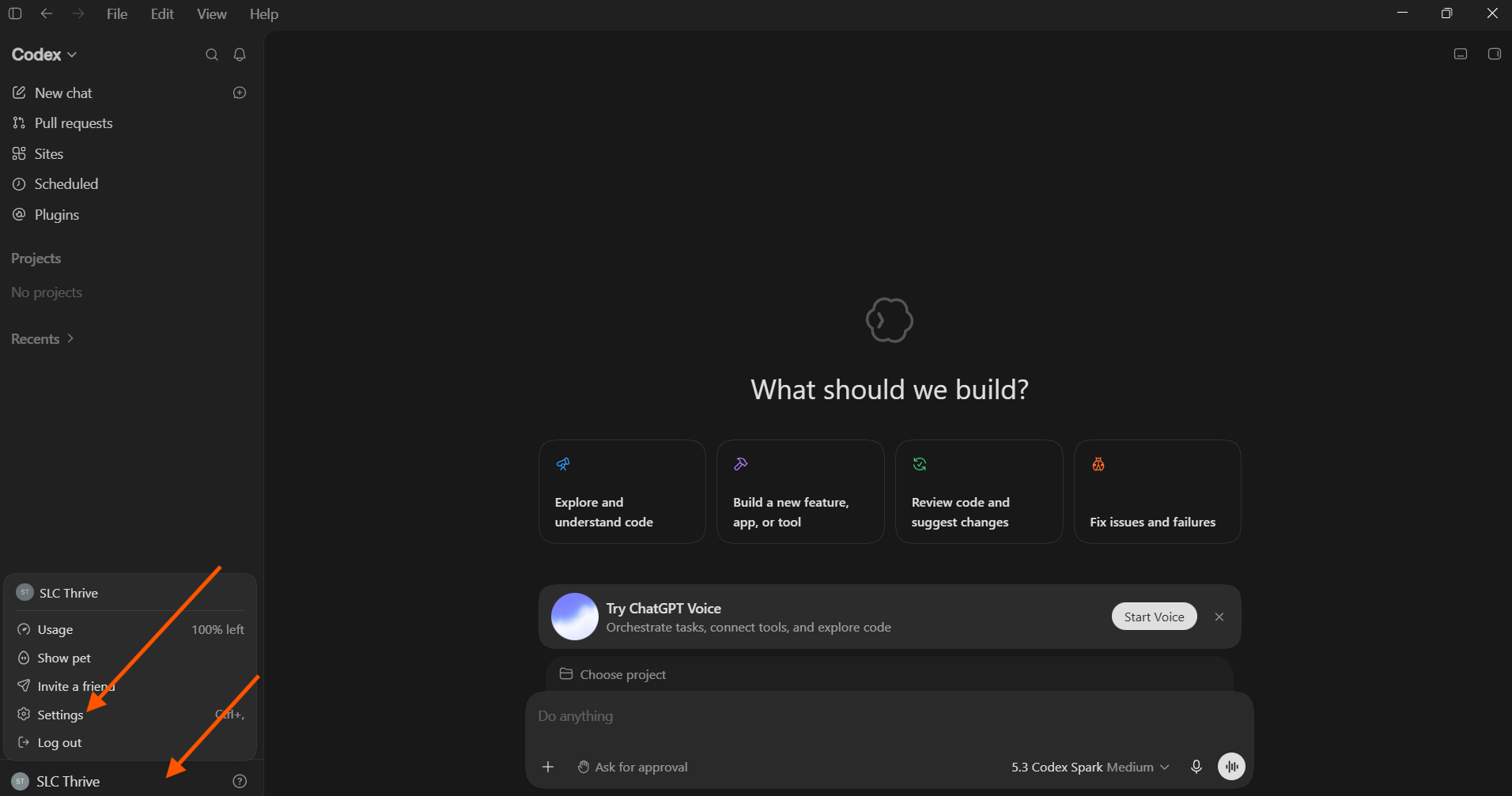
After the Settings page opens, continue to the next step to configure Keloola Projects.
2. Open the Plugins Menu
After the Settings page opens, select the Plugins menu in the left sidebar.
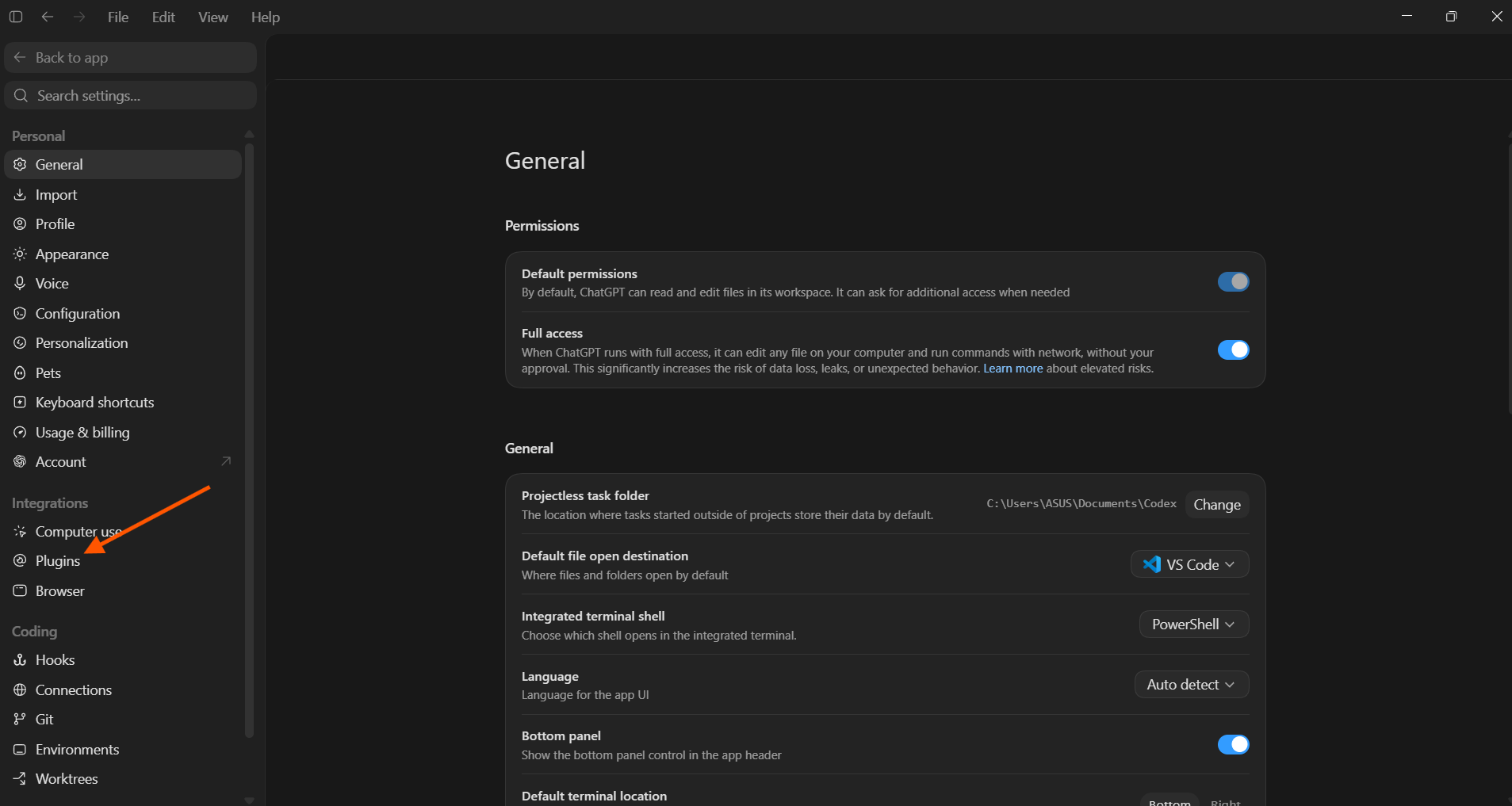
Next, continue to the configuration step to add Keloola Projects to Codex.
3. Add MCP Server
After the Plugins page opens, click the Add button in the top-right corner.
From the menu that appears, select Add MCP Server to start adding Keloola Projects to Codex.
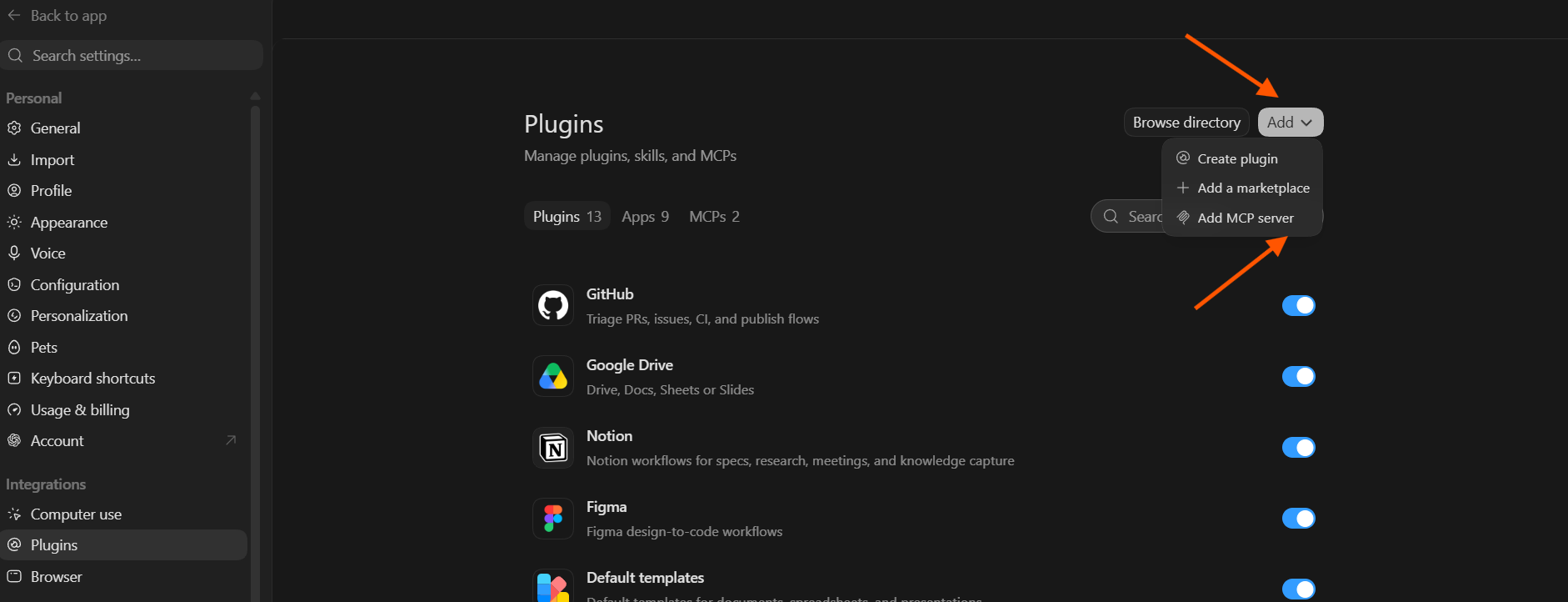
After selecting Add MCP Server, continue to the next step to enter the Keloola Projects configuration.
4. Enter MCP Server Configuration
After selecting Add MCP Server, a form will appear to add the MCP Server configuration.
Enter MCP Server Name with an easily recognizable name, such as Keloola Projects. Under Type, select Streamable HTTP, then enter the Keloola Projects URL in the URL field.
https://mcp.keloola.xyz/mcp/keloola-projects
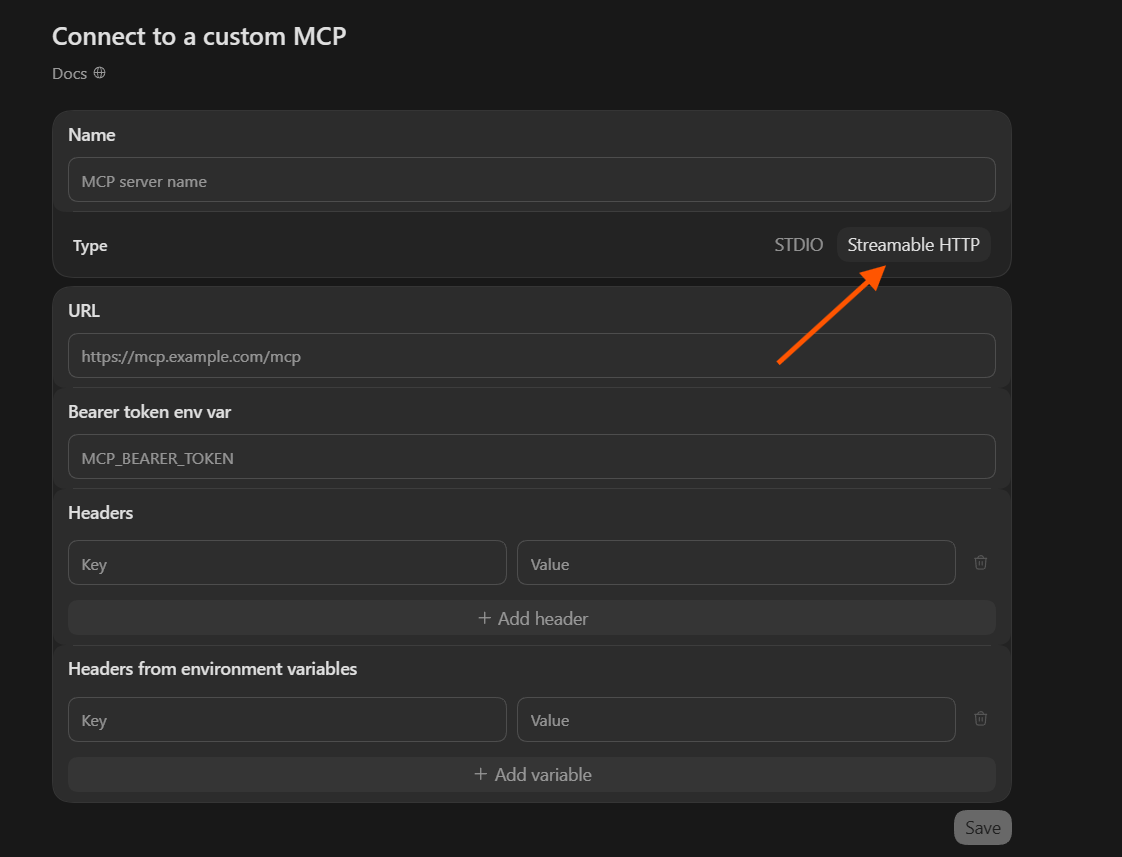
After entering all the required information, continue by saving the MCP Server configuration.
4. Configure OAuth
After Keloola Projects has been added, open the Codex config.toml configuration file to add the OAuth configuration.
Add the following configuration to the config.toml file:
[mcp_servers.keloola-project]
url = "https://mcp.keloola.xyz/mcp/keloola-projects"
[mcp_servers.keloola-project.oauth]
client_id = "YOUR_CLIENT_ID"
YOUR_CLIENT_ID with the Client ID you created through Keloola Developer.
Save the config.toml file after completing the configuration.
Set up Codex
For example, if the Redirect URI registered in Keloola Developer uses port 64740, use:
http://127.0.0.1:64740/callback/3bW7YZiPhanl
Follow these steps to connect Codex to Keloola Projects.
1. Add Keloola Projects MCP Server
Open a terminal on a device where Codex is installed, then run the following command to add Keloola Projects as a remote server.
codex mcp add keloola-project --url "https://mcp.keloola.xyz/mcp/keloola-projects" --oauth-client-id "YOUR_CLIENT_ID"
YOUR_CLIENT_ID with the Client ID you previously created through Keloola Developer.
After the command runs successfully, Keloola Projects will be added to Codex and ready for OAuth authentication.
2. Log in to Keloola Projects MCP
After Keloola Projects has been successfully added, run the following command in the terminal to start the OAuth authentication process through Keloola SSO.
codex mcp login keloola-project -c mcp_oauth_callback_port=64740
64740
in
mcp_oauth_callback_port
must match the port used in the Redirect URI registered in Keloola Developer.
After running the command, Codex will start the authentication process and redirect you to Keloola SSO. Complete the login and authorization process to grant Codex access.

Set up Claude Connector
Add the following Redirect URI to your application configuration in Keloola Developer:
https://claude.ai/api/mcp/auth_callback
Follow these steps to connect Claude to Keloola Projects using OAuth.
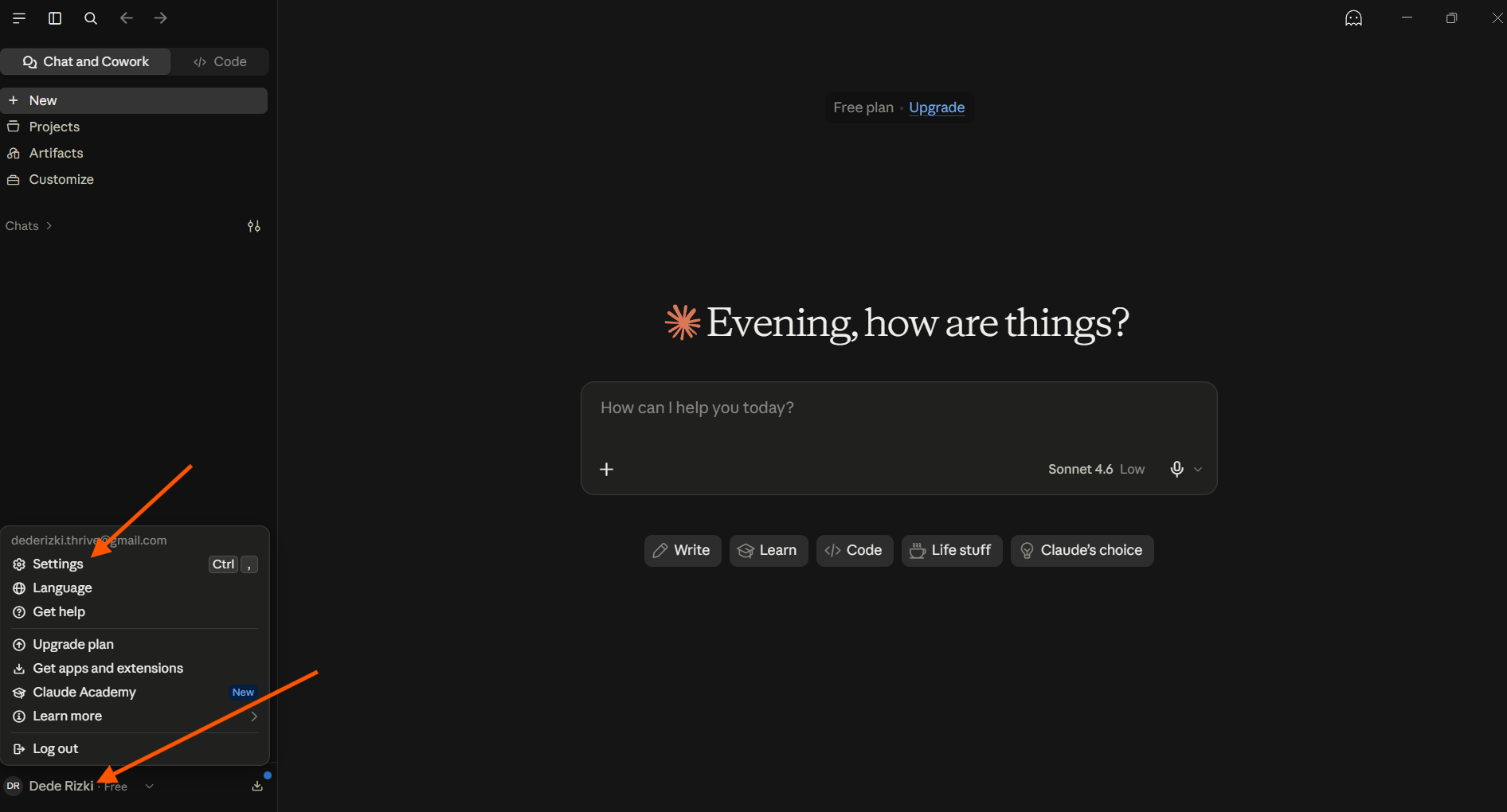
1. Open Settings in Claude Desktop
Open the Claude Desktop application, then click your profile name in the bottom-left corner. After that, select Settings.
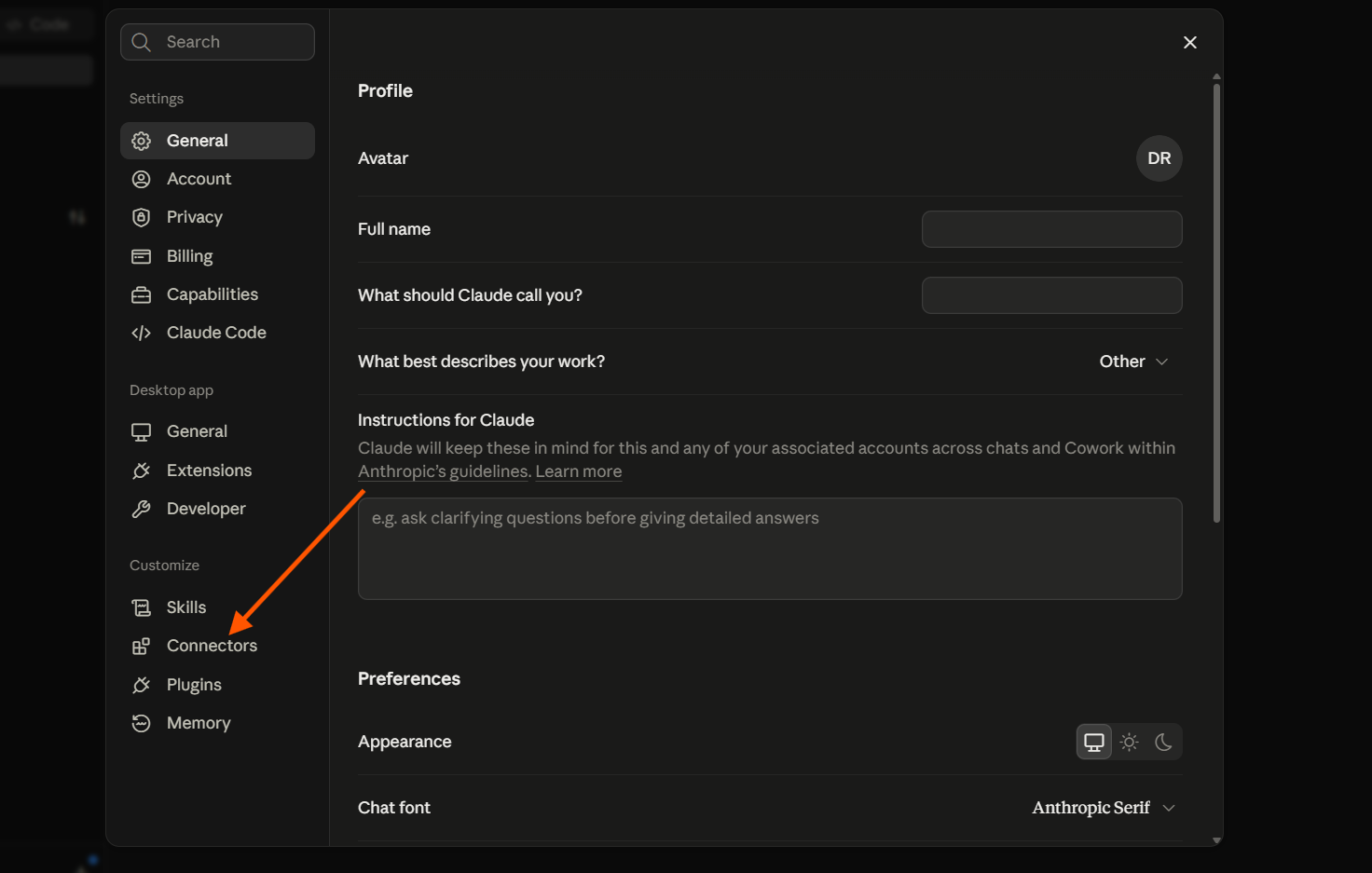
2. Select Connectors
After the Settings page opens, select the Connectors menu to manage MCP connections in Claude Desktop.
3. Add a Custom Connector
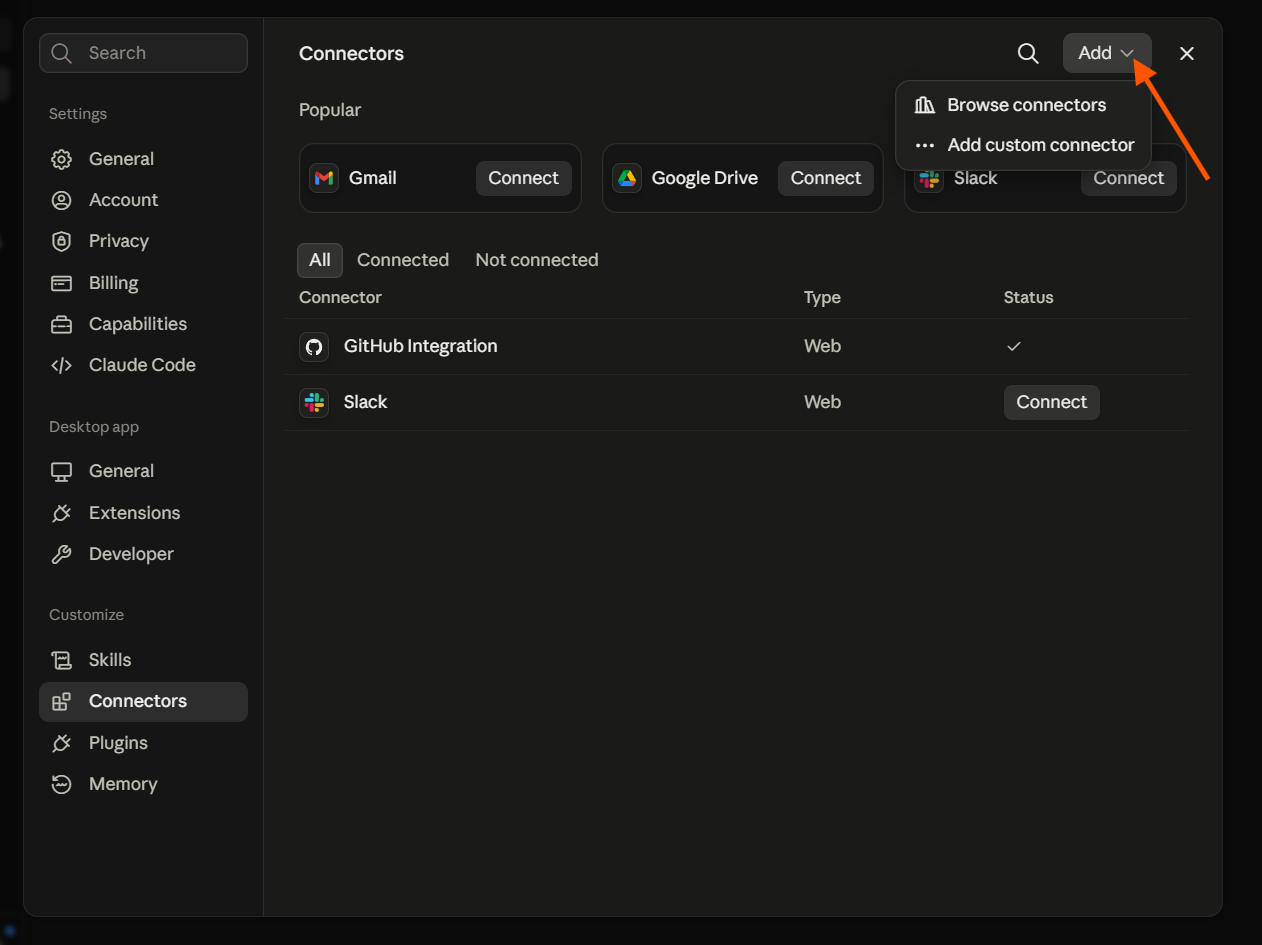
After the Connectors page opens, click the Add button in the top-right corner, then select Add custom connector.
4. Enter the Keloola Projects Name and Server URL
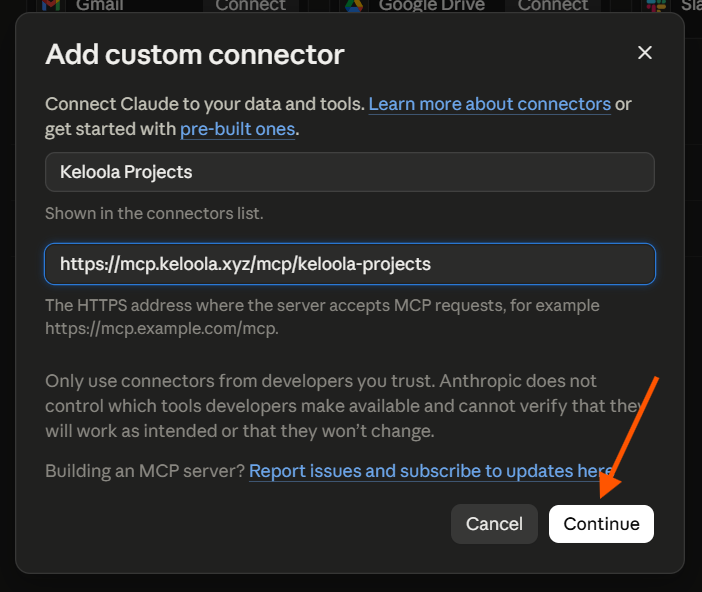
Enter the connector name and the Keloola Projects MCP server URL first.
-
Name — Enter the connector name, for example
Keloola Projects. -
Remote MCP server URL — Enter the provided Keloola Projects URL, for example
https://mcp.keloola.xyz/mcp/keloola-projects.
5. Wait for Keloola Projects Verification
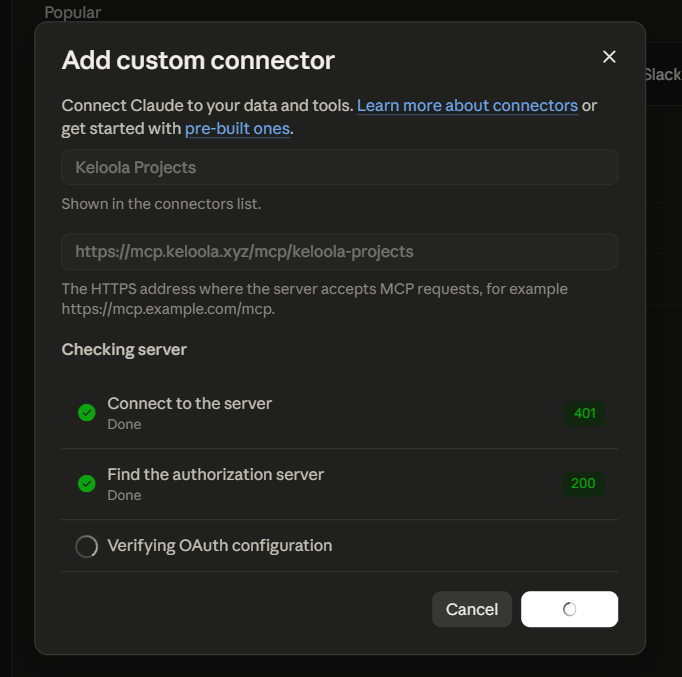
After saving the name and URL, wait for Claude to finish verifying the Keloola Projects connector.
6. Enter the Keloola Projects Client ID and Client Secret
After verification is complete, enter the OAuth credentials for the Keloola Projects connector.
- OAuth Client ID — Enter the Client ID created in Keloola Developer.
- OAuth Client Secret — Enter the Client Secret from the same OAuth Client.
Make sure the OAuth credentials come from the Keloola Projects configuration.
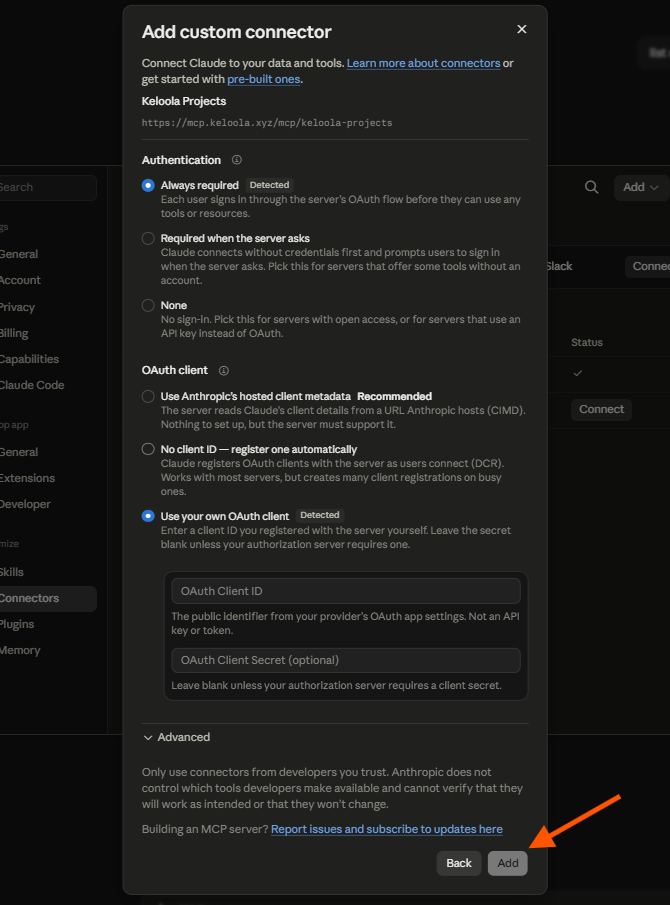
After entering the Client ID and Client Secret, click Add to add the Keloola Projects connector.
7. Connect the Connector to Claude
After the connector has been successfully added, click the Connect button on the Keloola Projects connector to start the authentication process and connect Claude to Keloola Projects.
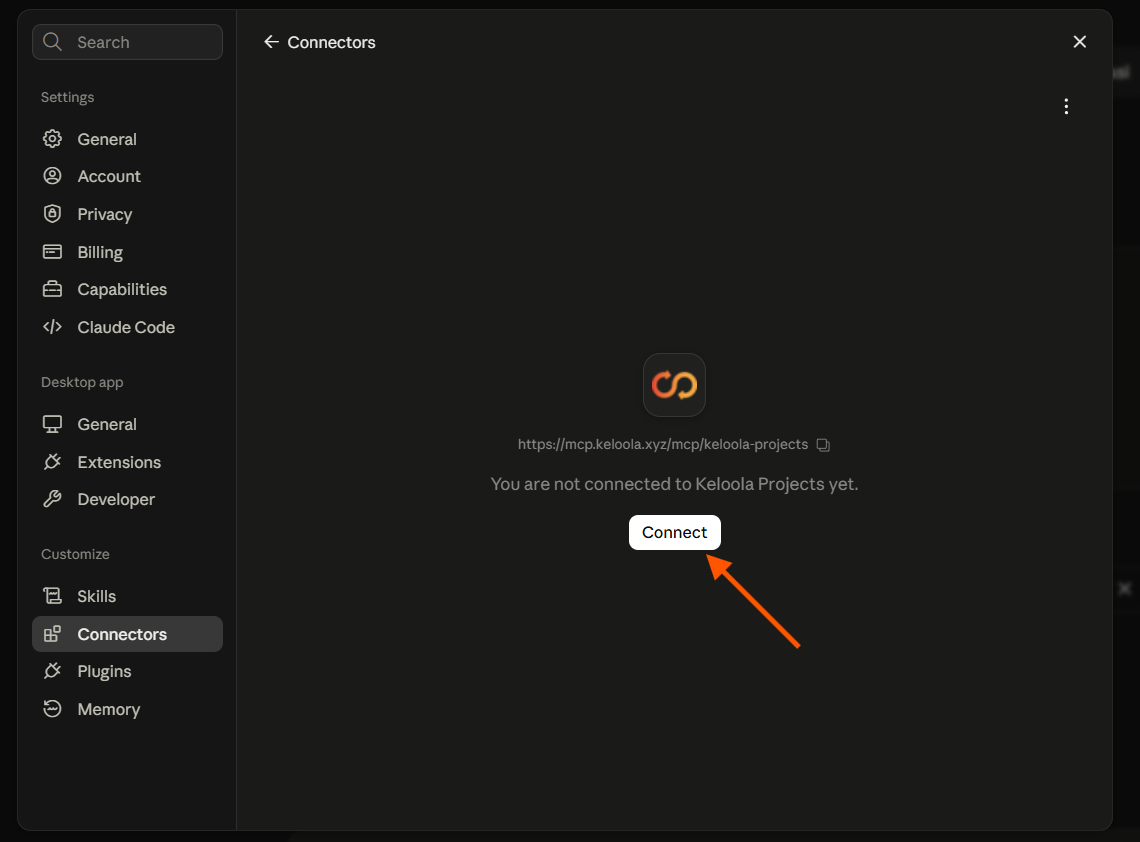
After clicking Connect, Claude will start the OAuth authentication process. If prompted, continue to the Keloola SSO page to log in and grant access.
Set up Claude Code
For example, if the Redirect URI registered with Keloola Developer uses port 3118, use:
http://localhost:3118/callback
Follow these steps to connect Claude Code to Keloola Projects through the terminal.
1. Add Keloola Projects MCP Server
Open a terminal on a device where Claude Code is installed, then run the following command to add Keloola Projects as a remote server.
claude mcp add --transport http keloola-project "https://mcp.keloola.xyz/mcp/keloola-projects" --client-id "YOUR_CLIENT_ID" --callback-port 3118
YOUR_CLIENT_ID with the Client ID you previously created through Keloola Developer.
The --callback-port 3118 value determines the port Claude Code uses to receive the OAuth callback. Make sure this port matches the port used in the Redirect URI registered in Keloola Developer.
After the command runs successfully, Keloola Projects will be added to Claude Code and ready for OAuth authentication.
2. Log in to Keloola Projects MCP
After Keloola Projects has been successfully added, run the following command to start the login and OAuth authentication process.
claude mcp login keloola-project
After running the command, Claude Code will start the authentication process and redirect you to Keloola SSO. Follow the login and authorization process until it is complete.
Set up OpenCode
Follow these steps to connect OpenCode to Keloola Projects using OAuth.
1. Add Keloola Projects MCP Server
Open a terminal on a device where OpenCode is installed, then run the following command to add Keloola Projects as a remote server.
opencode mcp add keloola-project --url "https://mcp.keloola.xyz/mcp/keloola-projects"
After the command runs successfully, Keloola Projects will be added to OpenCode.
2. Configure OAuth Client ID
You need to use the Client ID that you previously created through Keloola Developer.
Open the opencode.json configuration file, then add clientId to the Keloola OAuth server configuration.
{
  "$schema": "https://opencode.ai/config.json",
  "mcp": {
    "keloola": {
      "type": "remote",
    "url": "https://mcp.keloola.xyz/mcp/keloola-projects",
      "oauth": {
        "clientId": "YOUR_CLIENT_ID"
      }
    }
  }
}
YOUR_CLIENT_ID with the Client ID you created through Keloola Developer.
3. Register Redirect URI
After the Client ID is configured, OpenCode will use a local Redirect URI to receive the OAuth callback after the authentication process is complete.
Add the following Redirect URI to your application in Keloola Developer → Configuration → Redirect URIs:
http://127.0.0.1:19876/mcp/oauth/callback
After adding the Redirect URI, click Save in Keloola Developer.
4. Log in to Keloola Projects MCP
After completing the OAuth configuration and Redirect URI, run the following command in the terminal to start the authentication process.
opencode mcp auth keloola
OpenCode will display the authorization URL and wait for the authentication process to be completed in the browser.
Troubleshooting
| Problem | What to check |
|---|---|
| Client cannot reach server | The MCP URL must be public, HTTPS, and accessible from the client environment. |
| Login succeeds but connection is unauthorized | Check token audience/resource, SSO token validation endpoint, and that the user has Keloola Projects access. |
| OAuth redirect error | Register the client redirect URI in SSO as an exact match. |
| ChatGPT asks to sign in repeatedly | Enable refresh-token issuance and advertise the applicable offline scope in SSO metadata. |
| No tools appear | Reconnect after OAuth, then scan or refresh the tool list in the client. |
For Keloola SSO administrators
The SSO service owns OAuth configuration. Before onboarding a new client, confirm the following:
- Publish OAuth authorization-server metadata and support Authorization Code with PKCE S256.
- Support DCR or register a separate public OAuth client for each AI client.
-
Use
:mcp_urlas the resource/audience for access tokens. - Validate exact redirect URIs and restrict scopes to the required Keloola capabilities.
- Issue refresh tokens for supported clients that request offline access.